Showing posts with label lan. Show all posts

Finally! An internal DNS Server that works (for me)!

So it's been much too long since I wanted to do this, but thankfully, I have finally discovered the solution for which I can serve up my own DNS server for internal LAN things, but still have an external host that administers my public website!

My scenario and quandry was this:

Right now, our company is having our website (and inherently our domain) maintained and hosted with an outside provider. This is fairly simple to set up, and all the back-end stuff is kept nice and tidy on some remote server that isn't likely to have any serious power outages, so our public content is pretty much guaranteed to always be live.

However, our domain and its DNS records were being handled by this service as well (company.com, www.company.com, ftp.company.com, etc). This wasn't too much of a problem, because before we didn't care.

Then I decided, hey it would be really nice to have a server where we could host internal company things such as an internal website, network storage area, svn/git, etc. This was easy. Just get the boss to buy us a fancy new server computer from Dell, install a good, solid Linux server OS on it and get going. And it worked no problem.

And it turns out our public (internet) IP was static as well, which meant that I could get up on that public webhost DNS record and add a nice little subdomain for our public IP to let us serve up internal.company.com with a few port forwarding configurations through our NAT router and cable gateway. Awesome!

However, there was one big issue. For because we are set up with a two-step configuration to connect to the internet (router signs into cable modem as a client, and cable modem signs into Comcast), we were not able to pull up internal.company.com from INSIDE the company. Of course, what sort of issue is that, when you can just dial in the reserved IP 192.168.10.2 from inside? Well...that's confusing. Not that confusing to someone who knows what they're doing, but definitely confusing to someone who is just trying to make it work.

But how should I set it up so that if someone from outside the LAN is trying to access internal.company.com they get routed to our Comcast public IP, but if they're inside the LAN, they get routed to 192.168.10.2?

I had toyed with the idea of an in-house DNS for quite a while. Yet, everywhere I read, there was a ton of legaleze mixed into the documentation: "You shouldn't have records to a name that you don't own, you shouldn't create records for a domain that already has a master record somewhere else, etc." This was annoying. How would I ever be able to even play with the idea of a DNS server if everyone kept telling me I shouldn't do it the only way I saw it could be done?

But then I had this thought: "The entire internet is not going to be able to access my DNS server as long as I don't forward the port it uses through the router. Nobody in the Internet Policing Agency is going to even KNOW that I have a DNS server that is routing domains that I don't own. And after reading all the "this is what DNS actually does" documentation with its levels of looking up names all the way from the website-level DNS servers to the root DNS servers, no actual computer out there will ever use my public IP address to look up DNS records, because I simply won't let the world know it's even possible! I'm not qualified as a valid DNS host, nor do I ever intend to be.

I found a pretty good tutorial at http://doxfer.com/Webmin/BINDDNSServer that was super descriptive in telling me just exactly what DNS did. And then I found the entire article was based around a cool browser-based interface called Webmin. Turns out I can pretty well administrate the entire server over that service. I'm definitely using it for other stuff!

But anyway, after a bit of reading, I decided to give using it a shot.
  1. I couldn't very well test out a DNS server without configuring a client to route through it for lookups, so I changed my LAN adapter settings in Windows to look at 192.168.10.2 for a primary DNS server. Since I don't care about standards with the system, I decided to leave the secondary field blank, which it took.
  2. I installed BIND9 via aptitude: sudo apt-get install bind9 bind9-host bind9-doc
  3. Next I grabbed Webmin from Sourceforge to prepare for its installation: wget http://prdownloads.sourceforge.net/webadmin/webmin_1.660_all.deb though if this article is outdated (which in a few months it probably will be) the actual page to download will be more likely at http://webmin.com/download.html.
  4. Tried installing it once and it failed due to a few missing libraries, so I grabbed those as well after reading the actual installation instructions from the Webmin wiki: sudo apt-get install perl libnet-ssleay-perl openssl libauthen-pam-perl libpam-runtime libio-pty-perl apt-show-versions python
  5. Now, since I had attempted to install Webmin from the .deb file before, it automatically asked in no simple terms if I wanted to retry after aptitude finished installing those libraries. I apparently said yes to this (sudo apt-get -f install) and webmin was installed from some cache somewhere. However, if I had done it right, I would have next tried: sudo dpkg --install webmin_1.660_all.deb
  6. Once Webmin was installed and autoconfigured, I was then prompted to navigate to http://server:10000 in my browser:
  7. Once logged in via Webmin, I navigated to Servers > BIND DNS Server: 


    However, this only let me access the internet as the internet, the internal network by their hostnames and the local computer as itself.
  8. Now all the tutorials I found said that you should only create a master zone if you own it, and if this was the primary location for its record (to avoid clashing with the actual one or something). However, again, this was all for experimentation, and I had to put rules and standards aside. So I clicked Create master zone in the zone section of the BIND DNS Server configuration window.
    After all, creating a slave zone only lets you ask an already-existing master for its records. You can't create DNS records in a slave zone.
  9. From here, I specified the Zone type as Forward, the Domain as company.com, left Records file set as automatic, set, as was recommended on the above-mentioned tutorial, to put the server hostname (server) in the Master server field, and for the heck of it put my email in the email field. The rest I left as default.
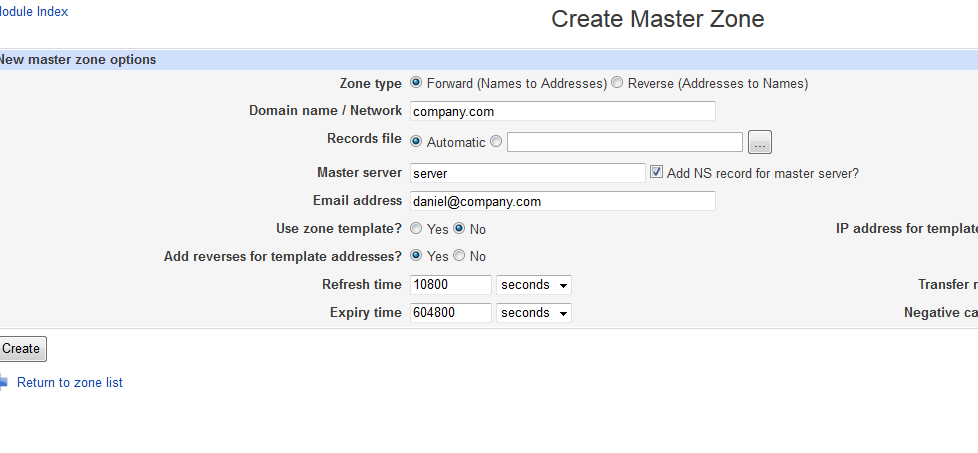
  10. With no problems whatsoever, I was brought to the Edit Master Zone screen. 
  11. Clicking the Address icon, I was brought to an A-NAME record entry screen, where I entered the Name internal and the address 192.168.10.2. I left Update reverse? as Yes which is its default.
  12. To test it out, I clicked the Apply Zone link at the top right of the screen. However, since I left Time-To-Live as default, I had to wait a few minutes before it actually worked. In time, I was able to open another browser window and successfully load the internal webpage at internal.company.com!!

    Sweet! So it works the way I want it. The internal subdomain successfully loads my internal webpages. But what about the external site that was hosted elsewhere, along with its domain name record which is also hosted elsewhere? Well, I've told my own internal domain name server that I'm controlling the root company.com now as the master record, when in all actuality the official root and www subdomains are being controlled offsite by some other company. I guess this is what they meant by making sure there was only one master zone. Well, thankfully BIND can take care of this issue as well!
  13. Backing out to the Master Zone Config screen by clicking the Return to record types link at the bottom the page, I was able to click the Name Server icon. This record type allows me to enter a subdomain and pass all the DNS lookup work off on some other server...which is exactly what I needed to do.
  14. In the Zone Name field, I first entered @ which is the default root prefix for any domain name. In the Name Server field, I then entered our website hosting DNS server ns1.external.net. Of course, since public, qualified DNS servers have two to three (and in the case of root domain servers, 13) actual machines doing all the work, I created a new Name Server record for the root subdomain with our host's second dns server name ns2.external.net. I also repeated this process for the www and ftp subdomain.
    In all reality, this seems a lot like the experience one might have with connecting through several devices to get onto the Internet, or port forwarding a port through multiple levels of network firewalls. The cable modem thinks the entire network consists of one client: the router, with an IP address of 10.1.10.48. But the ROUTER sees the rest of the computers on the LAN and serves them up with 192.168.10.xxx IP's. In the same way, the router sees 192.168.10.2 as the actual machine with the webserver that we tell it to forward through to the outside world. But to the router, the outside world is only its single wire from it to the modem on the 10.1.10.xxx network that the modem is serving. And the modem thinks that the router at 10.1.10.48 is the machine with the webserver that it needs to forward through. A lot of information passing just to get information to the outside world, and by then, who knows where it goes with all the routing and hopping?
  15. In any case, I'd gotten all of my public website subdomain requests passed to our hosting provider's name servers at ns1.external.net and ns2.external.net, applied the zone settings (and just to be safe, applied the configuration as well) in Webmin.
    After a few minutes, I was able to confirm that yes in fact company.com got me to our external website, as did www.company.com. And still internal.company.com routed me via the LAN to the server's webpage.
  16. I was basically done.. Except for one thing. How in the world was I going to get all the computers in the shop to look at my DNS server before they went outside to look at the real, public ones? I had set it up on my own computer to look at 192.168.10.2 as its primary DNS server via the IPv4 settings in the Ethernet driver settings, but I had no way of telling the other computers around the shop to do the same. Or did I?

    Opening up the main LAN router settings (an Apple Airport Extreme), I was pleased to find in its Internet > TCP/IP settings a little field there titled DNS Server(s):.
    Entering the LAN IP of my server (again 192.168.10.2), and saving it, I was able to login over the Wi-Fi with my laptop, visit internal.company.com and www.company.com and re-verify that everything STILL worked. Now with every request the router received to pull information from the internet or elsewhere, it would first look at my internal server to pick apart domain names before going outside to the public servers.
So that's that! Now I just need to do something similar at home. That, and creating internal subdomains for different sites hosted off of the same machine. THAT should prove interesting... but given that it's almost the end of the work day, that will have to wait until either next week, or when it finally proves practical.

So in short, if its for internal use, you can use any domain name you want on in your DNS records. Nobody or computer will know any different unless you explicitly tell it to search your own DNS server first. This method could even be used as a website filtering service. No more proxies through external services. Just create a blacklist and route all traffic via DNS records back in to a page that says, "Sorry. That website is blocked."

And because many people complain that the BIND configuration is super hard to figure out, I would highly recommend running Webmin on your server. It brings a GUI interface to so many of your tools...and eliminates a lot of the headache of typing everything in a console, or figuring out where everything is kept.

Preventing constant reboots on a network

For some weird reason, I found that my router (Netgear WNR3500L) (or my connection) was giving me problems...every so often it my LAN connection would completely reset and require me to reboot the computer, just to get the webserver back online (it would become completely unreachable via No-IP DNS -and- the external IP address..some 5xx connection reset error or something).

Recently I found that the problem was my router. The DHCP server built into it has a set lease time of what my connection says is 24 hours, although it only lasts about 12. I found a workable solution, yet it was rather annoying. I set up my Telnet server to automatically shut down every 12 hours, as well as the client that was accessing it. On top of that, I used Windows Scheduler to run reboot.cmd a minute after the server was shut down, and then used TweakUI to automatically log me back in, plus another command-line script that would autolock the computer after logging in. This way all the applications would be preloaded, but the computer would still be secured.

Got all that?

1. Telnet shutdown
2. Telnet client shutdown
3. Computer shutdown and reboot
4. Autologin (starting all the servers up again)
5. Autolock

DHCP is renewed, the connection is reset, and 100% accessible over the web.

The Telnet server is called PennMUSH, which is a Multi-User RPG engine which uses the common MUSHCode language to program.

For archival purposes, here's the detailed setup:

PennMUSH:
@@
@listen Shutdown Machine = ^-*: @switch [or([strmatch(%0,00)],[strmatch(%0,12)])] = 1,{@wizwall Shutting down.;@dump;@wait 30=@shutdown};@@ * is passed from the clock hourly as timefmt($H) <= The 24-hour hour code.


MUSHClient:
<timers
muclient_version="4.70"
world_file_version="15"
date_saved="2011-04-05 14:32:04"
>
<timer enabled="y" hour="00" minute"1" second="0.00" offset_second="0.00" send_to="12" at_time="y" >
<send>DoCommand Save("")
DoCommand Exit("")</send>

</timer>
<timer enabled="y" hour="12" minute="1" second="0.00" offset_second="0.00" send_to="12"
at_time="y" >
<send>DoCommand Save("")
DoCommand Exit("")</send>
</timer>
</timers>

reboot.cmd:
@echo off
echo Shutting down
shutdown.exe -f -r -t 30


autolock.cmd:
@echo off
echo Locking computer
rundll32.exe user32.dll, LockWorkStation
Scheduled Tasks:
Add one task to run reboot.cmd. Copy the event within the single task and schedule them to run at 12:02 am and 12:02 pm.
Complicated enough? I figured out a MUCH easier solution
Ctrl Panel>Network Connections>Local Area Connection>Internet Protocol (TCP/IP)>IP Address: 192.168.0.2, Subnet: 255.255.255.0, Gateway: 192.168.0.1, DNS: 192.168.0.1

In essence, setting a static IP behind the router turned of the DHCP lease time for this connection.

I had to do a bit of tweaking in the router config, like releasing the reserved IP for both the laptop (which was using 161.0.0.2) and the server computer (which was using 161.0.0.3) and reserve the first to the server computer based on its MAC. This way the router won't try to assign my manually-entered IP address to another computer and cause an IP conflict error (which can happen).

I've now had the server on for a day and a half (turning off all of this automatic shutdown-reboot stuff) and everything has continued to run with success!

My Router-Modem Setup

!Here's what I've figured out with my router/modem setup:

The router has two sets of plugs in it. One set is the regular ethernet ports to hook in single computers to. However, there is a single yellow port known as the WAN or Internet port. What really is the difference here? I've figured it out. The WAN port actually is the interface to a second half of the router. Just as the router communicates with computers so that the computers can communicate each other, all pieces being in a single "network" the WAN port on the router functions in exactly the same way with the though, though the modem now acts as a DHCP server and the router functions as a regular old client computer on the MODEM'S little LAN, known by the router as the WAN. From there, the MODEM creates a WAN network with Qwest...and who cares what THEY do? The configuration for the modem's LAN is an interface ONLY for the router, and the configuration for the router's WAN accesses the same exact interface, only from the other side.

So in short:

Modem WAN = Qwest Connection
Modem LAN = Router WAN
Router LAN = Computer 1, Computer 2, Computer 3 etc LAN

...
...
...
at least with my setup, this is how it works.


The way I found this out was with the strange way I could somehow access the modem THROUGH the router, even though the modem had a different base IP than the router was assigning to my computer. Of course, the best way to configure a modem is to attach it directly to a single computer and edit its stuff that way, but for some reason I was able to access it through the router. I had also figured that, well with two DHCP servers, one of them could be turned off and the router could assign them all. WRONG. I have to leave BOTH of them on! Why? Because when plugging the modem into the WAN (Internet) port on the router, that network created is entirely separated from the LAN that the router creates with my computer. They are TWO SEPARATE NETWORKS and any single one cannot be terminated, nor can their dynamic IP addresses conflict.

I had tried turning off the DHCP on the modem. This made the modem completely unavailable, because the Router cannot assign IP addresses via the WAN port. It is only a client there. I tried changing the IP address of the modem to the same IP address the router had on the LAN. This made BOTH unavailable to the ultimate client: my computer, because to my computer, these addresses were conflicting. I tried changing the IP of the Modem to something a little more friendly than the industry standard 192.168.0.1. In fact, in each case, I changed it to something like 161.0.0.161 or 161.0.0.200. But this was in the thought that the modem existed on the LAN. It does not. The modem exists on its OWN network with the router only.

So, as I lay awake at night, I thought, "What if I were to keep everything on, but change both the IP address of the modem and its DHCP assignments to the same, but completely different network? My router right now is on the LAN address 161.0.0.1 and it assigns clients IP addresses from 161.0.0.2 to 161.0.0.254. Those are two different screens on the router configuration. The modem has almost the exact same screens. A place where you can set its IP and a place where you can change its DHCP." Then this two-network configuration dawned on me and I knew it would work. There is also a WAN screen in the router configuration which shows its own DHCP-acquired IP address on the Internet.

Thus, when I got up this morning, I decided to play around with it, but with this knowledge in mind.

Going into the modem's DHCP settings, I changed the assignments to 160.0.0.2 to 160.0.0.254 (different from the router: 161.0.0.2-161.0.0.254). I got an error saying that the modem's own IP address was not on the same domain as I was trying to change the DHCP settings to. So I went into the Modem's LAN screen, where you can set its local IP address, and changed it to 160.0.0.1. I then in turn went BACK to the DHCP settings and tried again. Nothing changed when I hit apply, no error..and the numbers did not change. However, I figured that it was probably stuck, as a popup had occurred when changing the IP of the modem, saying that it needed to be rebooted. This time, I tried a software reboot via the menus. It worked, I hit refresh, and it errored out.

Oh yeah. Its IP isn't 192.168.0.1 anymore. It should now be 160.0.0.1. So I changed that in the browser's address bar. Lo and behold, it came right up! No problems at all!!

Now then, I've figured out that with this configuration, I have a two separate networks in my system. The router sees the modem's network as the "Internet" and serves to the computers the -real- LAN, while the modem sees the router as -its- LAN and pulls the Internet in as it should be, through the phone line with authentication. With this in mind, it is my new hypothesis that the router will NOT need to be configured to connect to Qwest. It is working thus far..I can connect to the modem through the router, and really, the modem IS the entire internet as far as my router is concerned. At least until I get the modem to connect to the internet and pass information through. So in my router's WAN setup, I should think in terms of "it is only communicating with the modem in this network. Everything should be left as off or default."

And in the same manner, I must consciously remember that all the INTERNET security features are pretty much up to the modem to block/allow/forward on to the router, because in terms of the modem, the router is the only computer connected to it!

Actually, theoretically, I should be able to place a switch between the modem and the router, giving me access to three more ports that will exist in the modem's network. I do have a switch. A switch is pretty much just a passive ethernet splitter, with a few hard-code smarts to make using it faster for all computers. There is no host plug, no client plug...everything just connects to the same string of ports and all interfaces through it function as parallel clients, even the Internet feed (server via router or modem). So, if I were to place my switch between the router and the modem, I should be able to attach a client computer to that switch and sit on the modem's network. In fact, with a switch, I should be able to take the router out of the equation completely. Of course, this would also take my router's wireless interface out, and the laptops would not be able to connect, but the modem would create the LAN network for both the router and a computer.

Now...there IS a feature in the modem configuration. It is called RFC Transparent Bridging. This basically turns off EVERYTHING in the modem and simply passes the DSL signal directly through to the router down the line. If I were to turn this on, my entire web interface to the modem would disappear (requiring a hard factory reset in order to get it back), and my router would be able to be configured with username/password/connection protocols directly to Qwest.

What if...I were to take the above two scenarios and combine them? What if I were to turn on the modem to transparent bridging mode AND split out the signal with only the switch? What if I were to make my LAN completely irrelevant? What if each computer was allowed to directly access the internet on its own?

In this case, each computer would need to be authenticated via their Local Area Network settings to work directly on the internet and authenticate with Qwest's servers. But in each case, the computer would be able to have their own IP with the rest of the world and function on their own! Of course, with this in mind, they would also be tying through the same switch, and so would be able to access each other, even with domain names (or in this case, workgroup names, because I don't have a computer with a DNS server).

Oooh!! With that last sentence, I just came up with another setup! If I could program a single whole computer as a server, I could buffer the Internet from the switch and essentially make that computer my "router."

And the possibilities go on. I could attach a router to the switch, making a wireless subnet (with a different set of IP addresses, of course). I could turn the modem back on, put a server in between the modem and the router and make a three-stage LAN...although this would be rather pointless unless you wanted to serve stuff up with minimal security.

So back to my first and currently-working scenario. What makes accessing the modem, and hopefully the Internet through the modem so easy if a router is buffering the signal and splitting the network into two? My hunch is what is called Routing Information Protocol or RIP.

RIP is defined by the router (modem's client) as allowing a router to exchange routing information with other routers. The RIP direction selection controls how the router sends and receives RIP packets. It can do Both, In or Out. There are two versions for RIP: RIP-1 is universally supported and is sufficient for most networks. RIP-2 allows for more information, uses subnet broadcasting (RIP-2B) or uses multicasting (RIP-2M), but is not as well supported.

RIP is not defined by the modem, but the setup says that "If a gateway or router is set up behind the modem, consult the documentation that came with the router to see if dynamic routing is needed and what version." And in turn, you can change what your router's RIP version is (1, 2 or off).

It is my theory that RIP (termed Dynamic Routing by the modem), is what makes passing information from the router's network into the modem's network (and the internet by extension), and vice versa. It basically bridges the two and says, "Yes the computers on the router's network can access information on the internet. And the computers on the router's network should also be able to access computers on the modem's network...if there are any." And I just tried it. From a computer, I typed in http://160.0.0.2 (the router on the modem's subnet), and it came up smooth as silk. I can get the exact same screen with at http://161.0.0.1. COOL!!! Now to see if I can turn off RIP on either of the devices and still make this work...

With the RIP on the modem off and on the router on, I can still access the modem's subnet (160.0.0.x). When turning off RIP on the router also, I can STILL access the modem's subnet. Okay. My concept of this is off..however, the modem did say that RIP should be enabled if a router is buffering its signal with the LAN, so I will turn it back on. I guess the fact that I can access 160.0.0.x means that this subnet looks like the Internet to my computer. Hopefully it won't conflict with another network on the real internet.....though it shouldn't matter really.

I expect the modem to be assigned a single IP, or at least with the arrival Qwest's documentation, to be given four IP addresses that are assigned directly to me (after all, I did say to the guy on the phone that we would have four computers on the internet at once). And in my modem's DHCP settings, I will make my little window of real-world internet IP addresses available to any client that connects directly through the modem. This means that my own router will have an Internet IP. But in my current setup, none of my actual client computers will. They will rely solely on the router IP for all transactions with the world. This means that my 160.0.0.2-160.0.0.254 will probably have to change.

But...since none of the client computers will have IP addresses on the network, unless they are connecting directly with the modem, it is likely that I will need to set up Port Forwarding for anything I want to serve from a client..web page, Telnet game, etc.

Port forwarding exists in both the modem's and the router's configuration screens. If you refer to my above configuration examples, let's take config 2.

Port forwarding a webserver from C2 through the router would make available to C1, a webpage that by typing in "160.0.0.2:80" it would be able to access. The port from the client would be passed into the router, but it would appear on the modem's network that the router was hosting the entire server, when in fact the client behind the router was forwarding port 80 through.

If I in turn turned on port forwarding in my modem's settings (Security/Port Forwarding) for a single computer, I could pass the router's Port 80 through to...the internet and the IP which is assigned to the modem will be able to be typed in to the web browser and C2's webserver SHOULD pop up!!

This brings up another issue though. While looking for Port Forwarding in the modem's config menus just now, I ran across the modem's IP address config. Does the modem also buffer with another IP address? Will the IP addresses it assigns to the router not be valid on the internet? Ignore Line 182. In the modem's config under the Status button (currently the modem is NOT online), and under Broadband status, it has a place for WAN IP, Gateway IP and modem model/MAC,etc. This means that the modem will be given its own IP which will itself buffer the rest of the network underneath it from the internet. Meaning that with my statement to the guy about planning on four computers connected at once (because there's a limit of five, which doesn't make sense), they're probably going to make me put my modem in Transparent Bridging mode and assume that I don't have a secondary router behind it. They will also assume that my modem is the same box as my router, so really it will be a wireless/wired switch in bridging mode. This will NOT be the case. I SHOULD be using only one of the four assigned IP's at a time and I'll just forward the services through as is required. The end. Deal with it!!!

So far, this is all I have that I could document..next up, what really IS RIP? What is NAT? I don't know...let's find out! :P

Oh hey. I just had a thought. If I forward port 80 from C2 through the router, that should mean that I should be able to access 160.0.0.2 (router's WAN connection) via C1 (or C2 as the case may be), and see C2's webserver rather than the router config! But going from the other way and accessing 161.0.0.1 (router as a server), I should get the router's firmware configuration.

Same with the modem. If I forward the router's new (or old) Port 80 through to the internet, I should be able to plugin the modem's IP address on the internet, and see the router's webserver (or configuration screen) rather than the modem's config. But I should be able to come in from the LAN (160.0.0.1) and see the modem config just fine. This could be cool!!!

DSL and Networking

I've always hated self-help books you find at B&N or the library on how to set up your own home network. In short, they always would assume that you had high-speed internet coming into your house and that you could create a standard configuration. However, up until about 30 minutes ago, we were using dialup for our main internet connection.

I purchased a wi-fi router a few months ago which was able to tie all of the computers in the house together so we could theoretically manage LAN games, streaming audio from one computer to another and sharing a gigantic hard drive. The only thing I had to consciously do was ignore every instance of "how to hook your router to the internet" because routers don't really take into account dialup connections. Here is how it looked:

If you notice, I had a nice little tie point for the four computers (actually, I couldn't make Laptop 2 connect due to Windows Vista finickiness, but it would have worked if I'd been able to sit down and fix it up). But this tie point was not at all able to access the internet. Instead, I had to run a proxy on Laptop 1, which has a built-in dialup modem. That way, Computer 1 and Computer 2 could route THROUGH that proxy via the internal network I had set up and access the internet just fine. Very nice..and workable.

Of course, everybody who has anything to say about anything will say that running dialup through a proxy or internet connection sharing is pretty pointless, and I have to agree. 28Kbps (3.5KB per second) running on even just one computer is painful to deal with. Splitting it between two or more would be one of the most annoying problems you'd run in to. BUT my point was, I wanted to make it work! Putting annoyances aside, will it even WORK? Of course. The picture above shows the configuration that actually worked for me.

In fact, Laptop 1 and Laptop 2 both had dialup modems to connect to the internet, as you can see, but if I had successfully been able to get Laptop 2 onto the wi-fi network, I could have routed that through the proxy so that Laptop 1 would have been the only machine with a real internet connection.

However, just 30 minutes ago, Mom and I got on the phone with our phone company and had them add DSL internet to our landline phone service!! FINALLY I can standardize my router and use the modem port on the back of it...and forget all this proxy and internet connection sharing nonsense that I had to work with.

At least, they said that by Wednesday the line should be activated with DSL. And by Wednesday, they'll have the self-installation disc with all the tutorials on how to make sure it works. I'm excited. We're planning on stopping by Best Buy this afternoon to pick up the $40 modem. Of course, that's a whole new snag. People assume that you don't already have a standalone router that cannot connect directly to the internet. They think that you don't have ANYTHING and that you'll just buy a router-modem combo, which is very true in the STANDARD case.

Of course, the combination router-modem box will cost $100 or more. And the standalone router I have now was $100 by itself. Via marketing logic, you would think that my $100 router by itself is of a higher quality than a router + modem that costs $100. That's my guess.

Anyway, I went to Best Buy earlier this week to check out what was possible and it turns out that for a mere $40, they also have a standalone DSL modem. Of course, there's only one choice in that sense, meaning a DSL modem is a DSL modem. There probably isn't a lot you can do with it apart from hooking it up. And by hooking it up, I mean, attaching it to the phone line, running an ethernet (CAT5) cable from the modem to...the router or a single computer, which I can do both, installing whatever software on that computer (or a computer that can access router functions), and accessing the modem from inside the home network.

This I am very excited about...but still somewhat confused. The phone company, in order to set us up, had to know how many computers would be connecting to the internet at any given time. But..why do you need to know? I can put a TON of computers in my home network. My router is a very nice one and can take probably hundreds of simultaneous connections. Why does the ONE wire that comes from the modem and that plugs into the WAN plug on the router need to know how many computers are behind it?

Unless somehow the router and the modem together are going to give each individual computer its own internet IP address. I don't know! I guess we'll find out. I had almost hoped and was at least planning that the router itself would be given an IP address on the internet and that the computers behind it would be able to "route" through to access the internet, but any What's-My-IP web scripts would only see the router's IP as accessing their sites/services, not the Laptop 1, Laptop 2, Computer 1, Computer 2 that's accessing the router.

Maybe there's something I don't understand, but that's how I thought this was going to work. But really, I should know by Wednesday how everything works. I told them that I was up for installing it myself instead of having a tech come out and fix us up for $50. Save money...and learn the ins and outs yourself. Not that I'd want to hack my connection. I just don't want to be one who stands around hoping the tech knows what he's doing because I don't. I want to know what he's doing also!

All in all, I'm excited. And you should be too. After all, if this is a success, I'll be able to finally host a website from my very own computer!! No more of this Brinkster stuff for me.

Soundcards and Shoutcast

Yesterday I received an Amazon order in the mail. It was my first ever ExpressCard device!

A few years ago, I burned out the left channel on my laptop headphone jack, so if I wanted to listen to anything with a pair of headphones at the library or something, I couldn't without putting up with just one side of the stereo mix. So last week, I went on Amazon and found a Creative (Soundblaster) ExpressCard sound card. Just yesterday, it came in the mail and I got it up and running! And I have to say it has excellent quality. 

Anyway, now I'm all into it. In the last couple weeks I've been attempting to download the Shoutcast tools from Nullsoft. And just today I finally got everything I wanted downloaded! I installed it on my big dimension, and am right now listening to a LAN stream of Christmas music. Of course, the setup at the moment is pretty pointless. My laptop is right here, and the audio server is also right here. But it WORKS! And that's what really matters. Now all I need is a broadband connection so YOU all can listen also ;).

Anyway, as of right now my setup is as follows:

  • PPS-DIMENSION is the main server computer on my LAN. It does NOT have a webserver yet, although I'm working on that right now. 
  • The Dimension DOES have a few audio services that I've integrated with Winamp.
    • Winamp itself - My big 500GB hard drive has approximately 81.5 days of audio (music, podcasts, sermons, radio programs, etc) which I access primarily from that computer.
    • A Kensington transmitter - My main audio output on the sound card is running directly into this short range FM transmitter which pipes the music to the entire house fairly effectively. I have had some EMI issues with walls and the like, but it's tolerable if I position the transmitter just so.
    • BrowseAmp 3 - A simple plugin for Winamp creates a web server which allows any client on the network to control Winamp via the browser. It has a flash client which I think is really quite clean.
    • Shoutcast Server - This bit of standalone software and integration plugin for Winamp dumps the actual audio output from Winamp directly onto a TCP/IP port, allowing anyone with a web-ready media player to open the proper URL and play the currently playing music on their own computer.
  • I've also got the main webserver on my laptop...but it's a laptop, so it's not as nice as I'd like it to be.
  • I also have a small proxy server from AnalogX on my laptop, which allows me to make very low-quality internet connections from the Dimension, which does not have a decent modem to connect itself.
  • I also run Last.FM on both laptop and Dimension to update my account with what I play. Of course, this service only works when I'm connected to the internet and program they call the "Scroggler" is running. And I still don't have the service down, so I don't know exactly what any of that accomplishes, especially when I'm on a slow dialup connection. Oh, I should mention that having this new sound card WILL allow me to listen to music at the library, and therefore, Last.FM (or Pandora, which I'm planning on switching to in a couple days) will be much more worthwhile to even have.
Therefore, with all these upgrades, my own little two-computer + router is coming together quite nicely and I'm making so much work for me!